
A business server can give your team a central place to store files, run shared applications and manage access. It is most useful when your software, data or day-to-day work needs capabilities that your current cloud services cannot provide. The right choice depends on how your business works, not simply how many employees you have.
For some offices, a local server is a practical investment. Others are better served by cloud applications or a combination of both. Here is how to weigh the benefits, costs and responsibilities before buying.
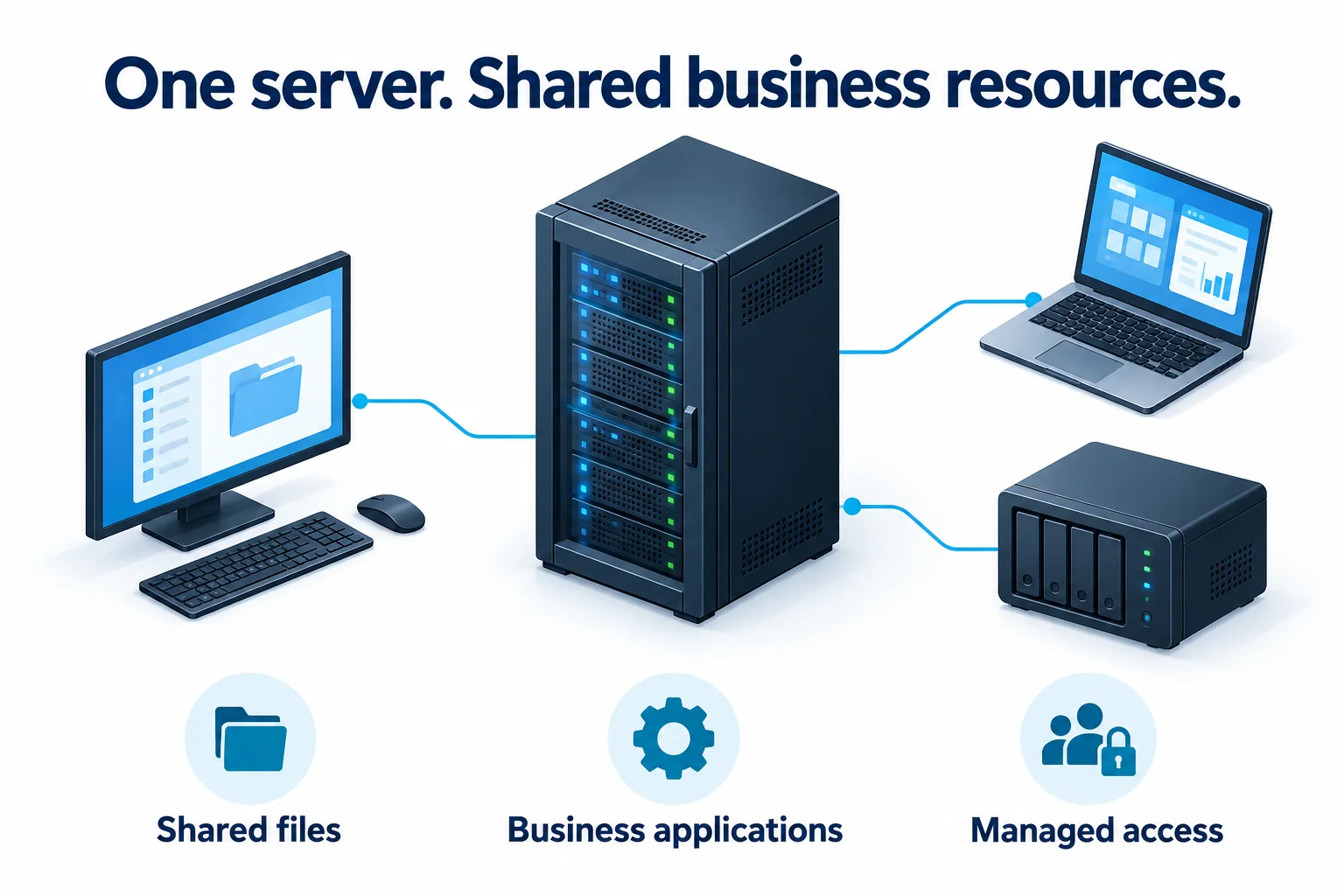
What does a server do for a business?
A server provides services to other computers. It might host a shared folder, a business database or an application used by several employees. It can be a physical machine at your office or a virtual machine running on local hardware or in a cloud environment.
For example, Microsoft describes Windows Server as a platform for applications and services across local, cloud and hybrid environments. Buying a server does not mean you must move every part of your business onto it.
Five practical benefits of a business server
1. A consistent place for shared files
Keeping working files in managed shared folders can reduce the confusion caused by copies scattered across employee computers. Staff can use a consistent folder structure, and access can be assigned by role: the finance team may need payroll files, while the rest of the office does not.
Central storage still needs permissions, file ownership rules and backups. Moving everything to one machine does not, by itself, protect it from deletion, ransomware or hardware failure.
2. Support for essential business software
Some accounting, inventory, engineering and other specialist applications need a shared database or a server environment supported by the software vendor. A properly sized server can give that application dedicated processing, memory and storage.
Check the vendor’s current requirements before choosing hardware or hosting. Confirm supported operating systems, licensing, concurrent users and how remote staff will connect. A cloud version may also be available.
3. Faster access to suitable local workloads
An office server can be useful when employees regularly access large files or applications that are sensitive to network delay. Keeping those resources on the office network may avoid repeatedly transferring data over an internet connection.
Performance is not automatic. Slow Wi-Fi, overloaded storage or insufficient memory can still cause delays. Test the actual workload and review the network before assuming a new server will solve the problem.
4. More control over access and maintenance
A managed server gives your IT team a place to apply permissions, monitor activity and schedule changes. Depending on the setup, it can also support centralized accounts and policies.
That control comes with responsibility. Someone must install updates, review access, monitor security alerts and maintain supported software. Use individual accounts, restrict administrator privileges and protect remote access with appropriate safeguards, including multi-factor authentication where supported. Owning the hardware does not automatically make data safer.
5. Less dependence on the internet for some office work
If the office internet connection fails, staff may still be able to use locally hosted files and applications while the server, local network and power remain available.
This does not keep every service running. Cloud email, online licensing, external integrations and remote access may still need the internet. Test which tasks actually work during an outage and plan backup connectivity if those tasks are critical.
Local server, cloud or hybrid: which fits your business?
Start with your applications and working patterns. These are useful starting points for an assessment:
- Consider a local server when a vendor requires it, office-based workloads need fast local access, or you have a clear operational reason to host systems on-site.
- Consider cloud services when staff mainly use browser-based applications, work from several locations and need straightforward document sharing without maintaining office server hardware.
- Consider a hybrid setup when a local application remains necessary but email, collaboration or offsite backups are better handled through cloud services.
For everyday document collaboration, Microsoft 365, SharePoint and OneDrive may already meet your needs. Microsoft documents co-authoring for supported files and applications. A basic shared folder on a server does not automatically provide the same simultaneous editing experience.
What does a business server really cost?
The purchase price is only part of the total. Compare local and cloud options over the same planning period, using the same assumptions about users, storage, security and recovery.
- Hardware, installation and migration from the existing system.
- Operating system, application and user or device access licences where required.
- Backup storage, backup software and recovery testing.
- Monitoring, security tools, updates and ongoing IT support.
- Power protection, electricity, warranty coverage and eventual replacement.
- For cloud options, subscriptions, storage growth, support and any applicable usage or data-transfer charges.
A server can be cost-effective for a suitable workload, but it is not a one-time expense. Ask for a comparison that includes ongoing maintenance and the cost of restoring service after a failure.
A server needs a separate backup and recovery plan
A single server can become a single point of failure. Redundant disks or power supplies may help with certain hardware faults, but they do not replace backups or guarantee uninterrupted service.
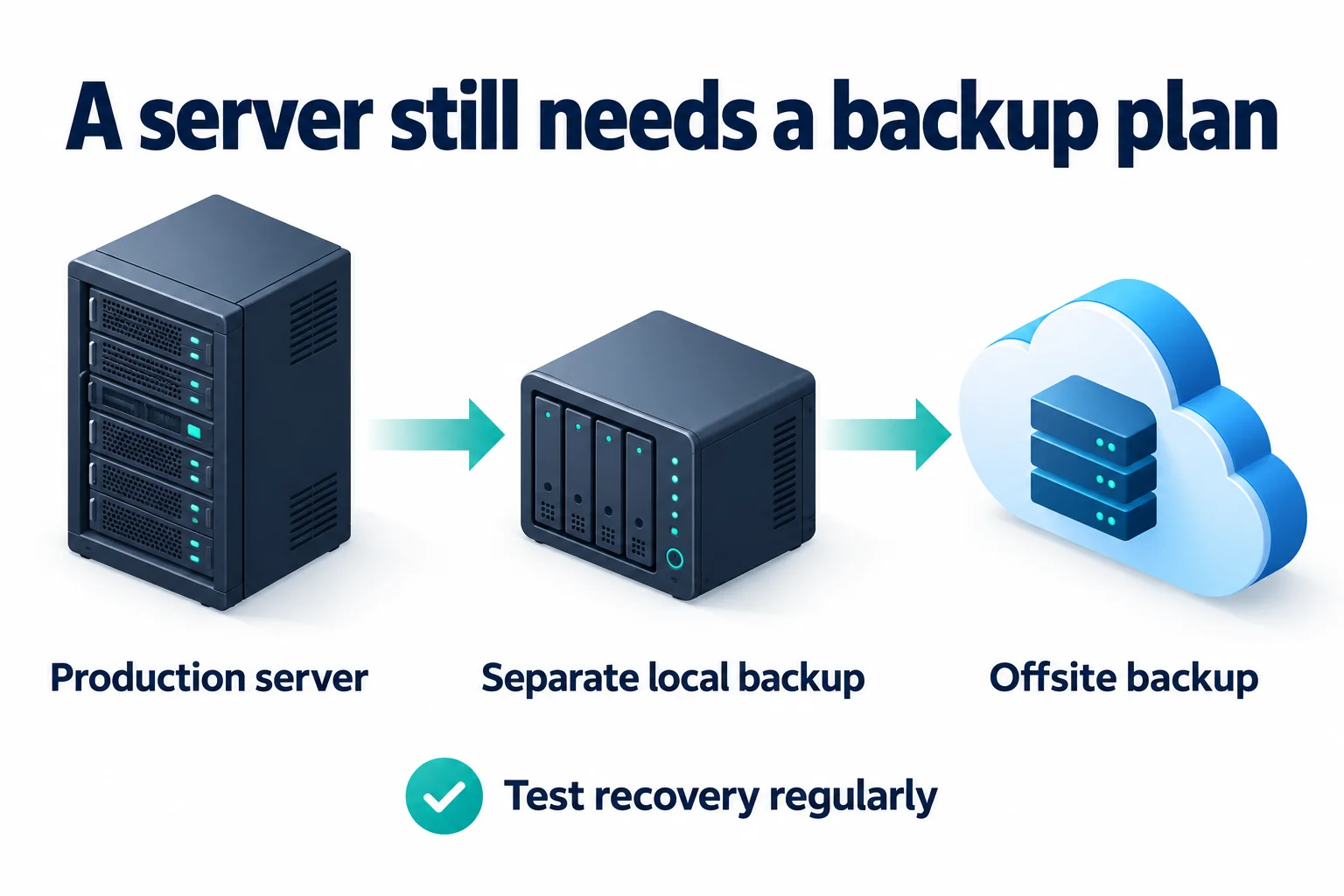
The Canadian Centre for Cyber Security recommends encrypted, offline backups and regular testing of business continuity and disaster recovery plans. An offsite copy is useful, but its location alone does not make it safe from compromised accounts or ransomware.
Your backup and disaster recovery plan should define how much recent work the business can afford to lose and how long it can operate without the system. Use those targets to set backup schedules, retention and recovery procedures. Test restoration of the application as well as its files.
Questions to answer before buying a server
- Which specific application or business problem requires a server?
- Could an existing cloud service or a simpler storage solution meet the need?
- How many people will use it at the same time, and from which locations?
- How much storage and processing capacity will the workload need as it grows?
- What stops working if the server, power or internet connection fails?
- Who is responsible for updates, monitoring, access reviews and support?
- Where are the backups, and when was a successful restore last tested?
- What is the full cost of each option, including migration and eventual replacement?
Common questions
Does every small business need a server?
No. A small business using cloud email, online accounting and shared cloud documents may not need an office server. A business with a specialist application or demanding local workload might. Choose around the work the system must support.
Can a NAS replace a server?
A network-attached storage device, or NAS, may be sufficient for shared files and some backup tasks. It may not support your business application’s operating system, database or performance requirements. Check compatibility, access controls and recovery options before treating the two as interchangeable.
Can remote staff use an office server?
Yes, with a properly designed remote-access solution. Access depends on office connectivity, the server’s availability and security controls. Plan it with your IT provider rather than exposing file shares or remote desktop directly to the internet.
Choose the setup that supports your work
A useful server investment solves a specific problem: an essential application, a local performance need or a manageable way to share resources. It should also come with a clear owner for maintenance and a tested recovery plan.
For help assessing an existing system or planning a replacement, visit our server support page. An assessment should compare your applications, staff locations, recovery needs and ongoing costs before recommending local hardware, cloud services or a hybrid setup.